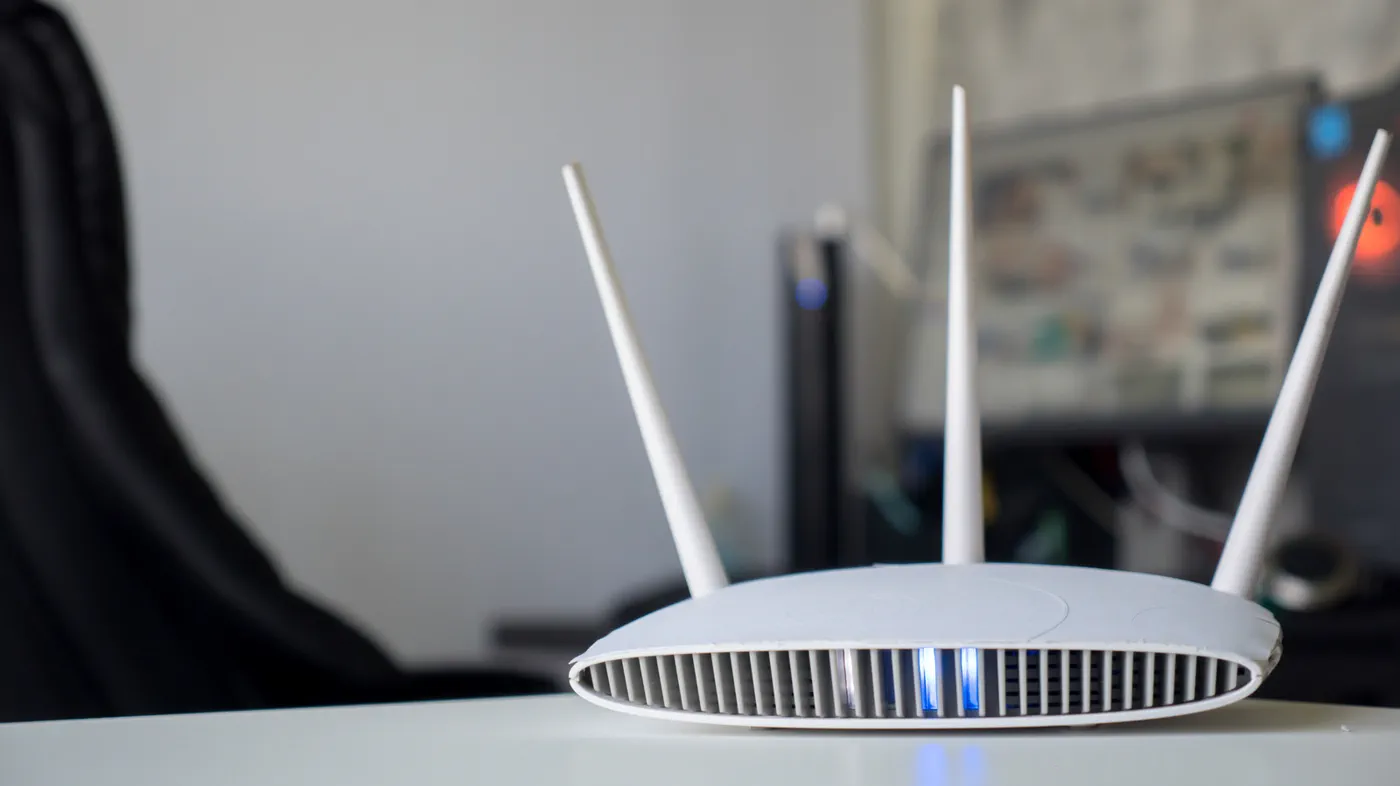
For anyone who has ever suffered a sudden internet outage, the front panel of a Netgear router can look like an intimidating wall of blinking glyphs and shifting hues. Netgear equips its standalone Nighthawk routers and Orbi mesh nodes with an array of status indicators designed to diagnose connection problems in real time without forcing you to log into an administrative dashboard.
While some symbols like the classic power circle are immediately familiar, others—like orbital rings, multi-band radio icons, and two-tone Ethernet lights—can baffle even tech-savvy homeowners. Decoding what these illuminations mean, which ones demand immediate troubleshooting, and which ones are simply showing routine data transfer can save you hours on hold with technical support.
What the Router LEDs Tell You at a Glance
Consumer networking gear relies on a standardized visual vocabulary to communicate internal hardware health, local network states, and wide-area network (WAN) handshakes. On Netgear devices, LEDs cycle through three primary colors: white (or green on legacy hardware), amber, and occasionally red or magenta on select mesh platforms.
As a baseline rule, solid green or white indicates that a subsystem is active, provisioned, and operating normally. Rapidly flashing or blinking green or white lights are almost always benign; they merely demonstrate that data packets are actively traversing the radio waves or physical copper wiring.
Amber and red, by contrast, act as alert mechanisms. A solid amber light signals a degraded or initializing state, whereas a flashing amber or blinking red light warns of active firmware operations, synchronization failures, or corrupted software. If an indicator that is supposed to be lit remains completely dark, the router is either unplugged, unpowered, or failing to detect a physical physical medium attached to the corresponding port.
Watch: Understanding Your Netgear Router Lights
Video: Tech·WHYS on YouTube
The Critical Pair: Power and Internet Status LEDs
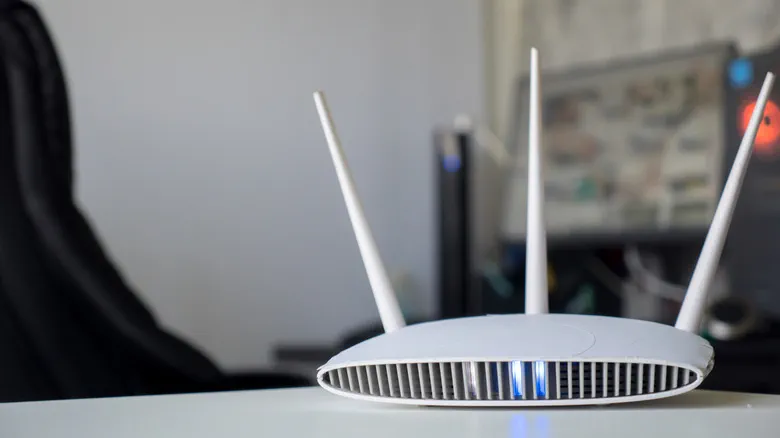 Photo: Engadget - Technology News & Expert Reviews (source)
If your home network abruptly halts, you can bypass most of the router faceplate and examine just two indicators: the Power LED and the Internet LED. Together, these tell you whether the issue lies inside your router's operating system, the physical patch cable, or your broadband provider's feed.
The Power LED (stamped with the universal open-circle power icon) reveals system stability:
- Solid White or Green: The router is receiving power and has completed its boot cycle.
- Solid Amber: The device is currently starting up or completing its power-on self-test (POST).
- Blinking Amber: Firmware is being rewritten over-the-air, or someone has depressed the physical reset pinhole on the back chassis. (Never unplug the router during this stage.)
- Blinking White: The onboard firmware is corrupted, requiring an emergency recovery procedure via TFTP or warranty replacement.
- Blinking White and Amber: On select models like the Nighthawk R8000, this alternating pattern denotes Access Point (AP) mode, where routing duties and DHCP are handed off to another gateway.
The Internet LED—represented by an icon featuring a planetary globe or a satellite orbit—monitors the connection between the router's WAN port and your broadband modem or optical network terminal (ONT):
- Solid White or Green: The router has negotiated an upstream link, obtained a public IP address, and is ready to route external traffic.
- Solid Amber: The router recognizes an Ethernet cable plugged into its WAN port, but it cannot establish an internet connection or secure a valid IP lease from the modem.
- Blinking White: Packets are actively streaming upstream and downstream over your broadband pipe.
- Off: No physical connection exists between the router and modem; either the cable is detached or damaged.
Wireless Activity: Decoding the Wi-Fi Band Indicators
Further down the chassis, you will find icons designating wireless broadcasts. Modern dual-band, tri-band, and quad-band Netgear routers separate these radios into distinct labels: 2.4 GHz, 5 GHz, and on newer Wi-Fi 6E and Wi-Fi 7 models, 6 GHz.
When a specific band's LED is solid white or green, its broadcast radio is transmitting its service set identifier (SSID). When the light flickers rapidly, connected devices such as laptops, game consoles, and smart thermostats are exchanging wireless packets over that frequency.
If one or all of the Wi-Fi band LEDs are off, the wireless antennas are shut down. This commonly occurs if someone inadvertently taps the physical Wi-Fi On/Off button found on the front of high-end Nighthawk routers, or if a scheduled wireless downtime rule was enabled inside Netgear's Genie or Nighthawk management apps.
Wired Ports and Peripherals: Ethernet, USB, and WPS
 Photo: Engadget - Technology News & Expert Reviews (source)
The remaining front-panel lights provide status updates on local hardwired connections and hardware utilities.
Ethernet LAN Indicators
Numbered 1 through 4 (or higher on 8-port performance models), Ethernet LEDs monitor the state of each physical RJ-45 jack. Crucially, Netgear uses these lights to communicate link speed:
- Solid Green or White: A powered-on client device is linked at 1 Gbps (Gigabit Ethernet) or higher.
- Solid Amber: A connection is active, but negotiating at legacy speeds of 100 Mbps or 10 Mbps. If you plugged in a modern PC or console and see amber, you likely have a damaged Cat5e/Cat6 patch cable or a bent pin.
- Blinking: Data is actively flowing across that wired port.
- Off: The port is empty or the attached computer is powered completely down.
USB and WPS Lights
Routers equipped with storage-sharing capabilities feature USB 1 and USB 2 indicators. A solid light means an external hard drive or thumb drive is mounted and ready for network-attached storage (NAS) access, while a flashing light indicates file access or drive mounting.
The Wi-Fi Protected Setup (WPS) button displays two interlocking curved arrows or a radio broadcast symbol. When pushed, the light blinks white for two minutes during pairing negotiation before turning solid white once a client joins. However, because WPS uses an automated PIN mechanism with well-documented cryptographic flaws, security professionals strongly recommend disabling the feature in your admin settings.
Reading Netgear Orbi Mesh Systems: Minimalist Lighting
Netgear abandoned complex multi-LED arrays on its Orbi mesh Wi-Fi hardware, adopting a subtle, minimalist light ring or front glow bar to keep living rooms clutter-free. Because an Orbi system spends its operational life with the front light completely off, any illumination usually indicates an active change or network interruption.
On the front or bottom ring of an Orbi router and its satellite units, the light conveys the health of the wireless backhaul link:
- Solid Blue (for 90 to 180 seconds): The connection between the Orbi router base and satellite is strong and stable. The light then shuts off to avoid disturbing the room.
- Solid Amber: The satellite connection is fair or weak. The satellite should be moved closer to the main Orbi base router.
- Solid Magenta: The satellite cannot sync with the router base, or the primary Orbi unit has lost its WAN internet uplink.
Around back near the power input, a secondary tiny LED tracks power: solid green denotes active power, solid amber flags a reboot in progress, pulsing amber indicates an active firmware flash, and pulsing red warns of a critical hardware or port malfunction.
LED Quick-Reference: Status, Colors, and Meanings
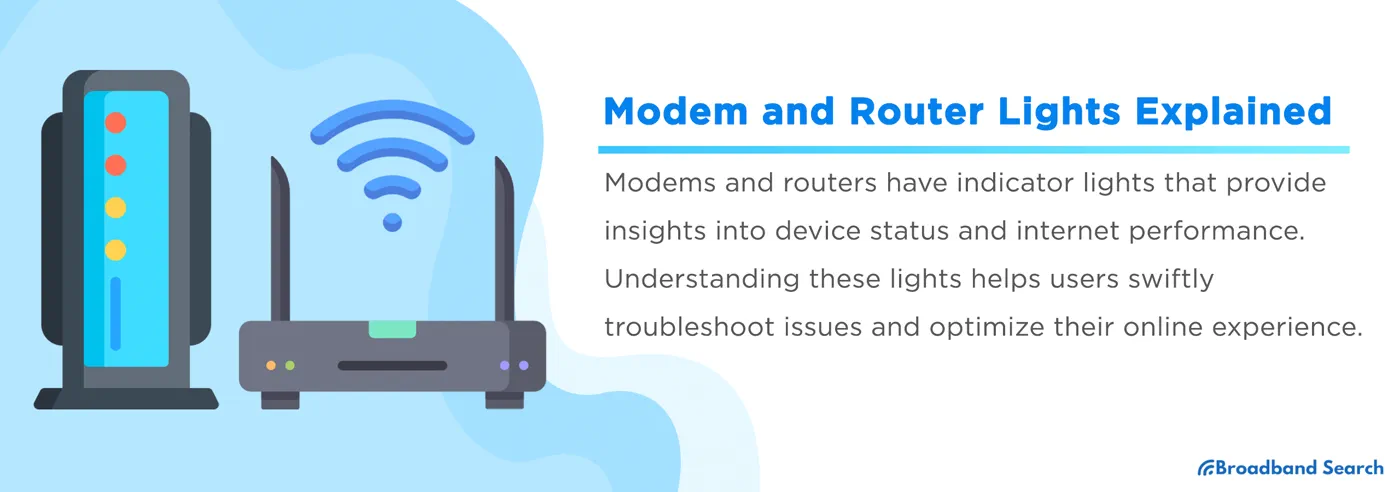 Photo: broadbandsearch.net (source)
| Indicator | Color & Pattern | Operational Status | Recommended Action |
|---|---|---|---|
| Power | Solid Green/White | Normal operation | None; device is fully functional. |
| Power | Solid Amber | Device bootloader running | Wait 2–3 minutes for boot cycle to complete. |
| Power | Blinking Amber | Firmware flashing / Reset active | Do not power off or unplug the unit. |
| Power | Blinking White | Corrupted operating firmware | Perform TFTP firmware recovery or contact support. |
| Internet | Solid Green/White | Upstream WAN connection active | None; internet is online. |
| Internet | Solid Amber | Physical link present, no IP/internet | Power cycle modem first, then router. |
| Internet | Off | No cable detected in WAN port | Inspect and reseat the Ethernet patch cable. |
| Wi-Fi Bands | Solid / Blinking White | Radios broadcasting / passing data | Normal wireless operation. |
| Wi-Fi Bands | Off | Radios powered off | Press physical Wi-Fi button or toggle in app. |
| Ethernet LAN | Solid Green/White | Gigabit (1000 Mbps) link verified | None; operating at full speed. |
| Ethernet LAN | Solid Amber | 10/100 Mbps negotiation | Check for damaged cable or legacy port limits. |
| Orbi Ring | Solid Magenta | Loss of backhaul sync or WAN drop | Move satellite closer or check modem link. |
| Orbi Ring | Solid Blue | Backhaul synchronization optimal | None; will turn off automatically. |
Practical Troubleshooting: What to Do When Warning Lights Appear
When faced with an anomalous light pattern, following an orderly isolation process prevents misdiagnosing a simple handshake stall as hardware failure.
- Check the Internet LED First: If the Power LED is solid white but the Internet LED is amber, the router cannot obtain an IP address. Power down both your broadband modem and router. Plug the modem in first, wait three full minutes until all upstream/downstream lights lock solid, and only then power on the Netgear router.
- Isolate the Patch Cable: A completely dark Internet LED usually points to a failed Ethernet cord rather than blown circuitry. Swap the cable connecting the modem to the router's yellow WAN port with an alternate Cat6 cable.
- Handle Blinking Amber or White Power Lights: If your Power LED continuously blinks amber or white without settling, the router is stuck in an interrupted boot state or failed firmware write. Press and hold the rear pinhole reset button for 15 seconds to initiate a factory wipe. If the light continues blinking white, the unit requires TFTP recovery tools via a wired PC.
- Address Magenta on Orbi: If an Orbi satellite turns solid magenta, unplug it and move it into the same room as the primary router for a test sync. If it turns blue, the original placement was too far from the base station or obstructed by dense structural walls.
Unanswered Questions and the Push Toward Stealth Networking
While enthusiast users value detailed front-panel diagnostics, the networking hardware industry faces a persistent design dilemma. High-performance Nighthawk routers can feature upwards of a dozen flashing lights, often drawing complaints from users when installed in bedrooms or media centers. Netgear has resolved this on select models by allowing users to turn off status LEDs completely inside the router’s web interface (leaving only the Power LED active).
Yet questions remain regarding how future home hardware will signal complex multi-gigabit fiber connections and smart-home mesh anomalies without confusing users. As more consumers adopt Wi-Fi 7 devices requiring wide channel handshakes across 320 MHz bands, relying on tiny colored bulbs may soon give way entirely to mobile application push notifications and automated app-based diagnostic assistants. Until then, knowing how to interpret your router's hardware lights remains the fastest way to get your home back online.
FAQ
Why is my Netgear router's power light blinking amber?
A blinking amber power light indicates that the router is actively installing a firmware upgrade or that the factory reset button was pressed. Do not unplug or reboot the device while this light is flashing, as interrupting a firmware flash can permanently corrupt the system.
What does a solid amber internet light mean?
A solid amber internet light means your router physically detects the Ethernet cable connected to the modem, but cannot acquire an internet connection or IP address. This typically requires restarting the modem first, followed by the router, or contacting your internet service provider to resolve line outages.
Why are my router lights flickering rapidly?
Fast-flickering white or green lights on the Wi-Fi or Ethernet indicators indicate active network traffic. This is normal behavior showing that your smart TVs, computers, or smartphones are successfully downloading or uploading data across the network.
What does the magenta light on a Netgear Orbi mean?
A solid magenta light on an Orbi unit signifies that the satellite has lost its wireless backhaul connection to the base router, or that the primary router has lost its broadband connection entirely. Relocating the satellite closer to the main unit usually resolves the issue.
Should I keep WPS turned on?
No, cybersecurity specialists recommend turning off WPS in your router's settings. While the WPS button makes connecting printers or range extenders convenient, its underlying authentication system has known vulnerabilities that make networks more susceptible to unauthorized access.