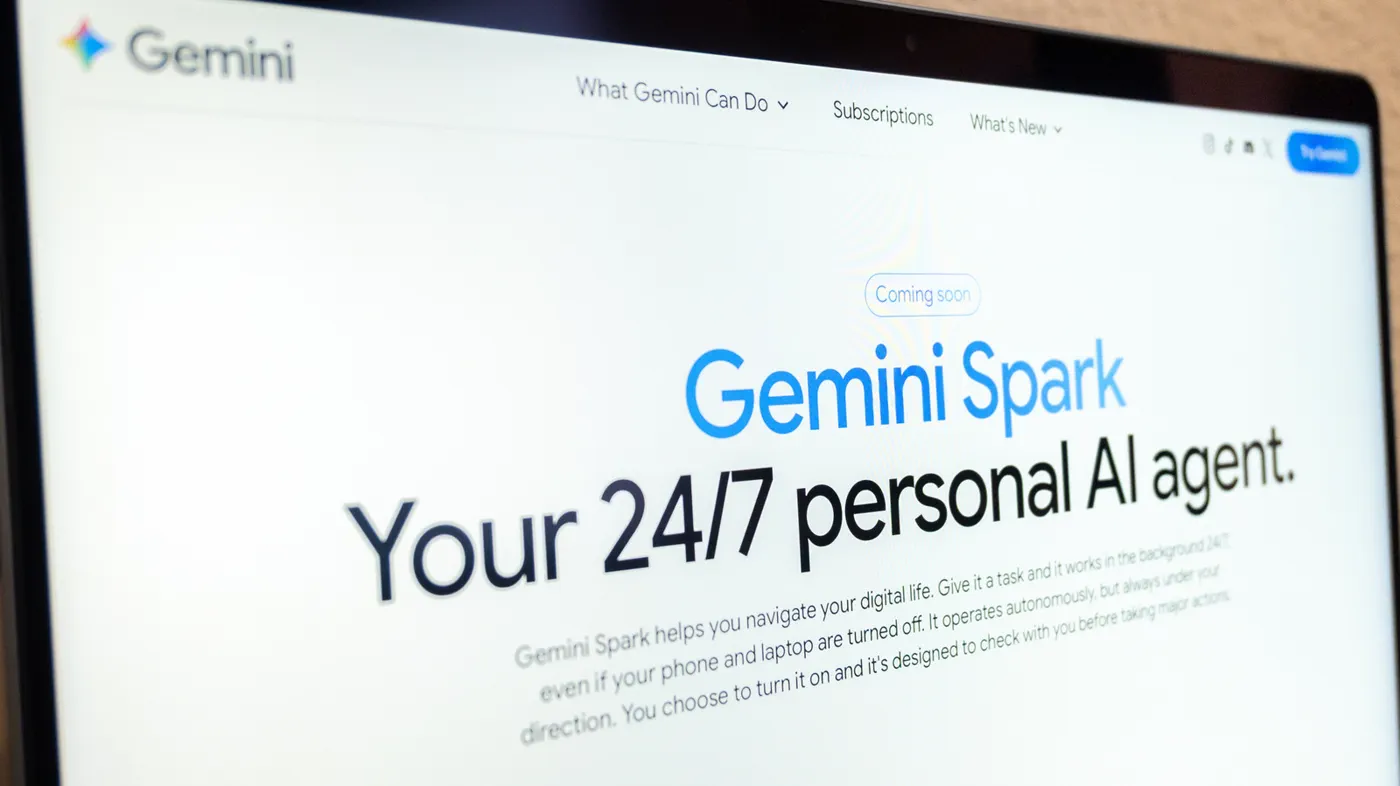
Google has expanded Gemini Spark, an agentic AI system designed to handle multi-step digital tasks and execute background workflows without requiring users to supervise every step. Rolling out to paid subscribers across web browsers, desktop computers, and mobile devices, the tool marks Google's major transition from a reactive conversational chatbot to an always-on personal agent capable of monitoring your inbox, managing spreadsheets, and tackling web errands.
For years, generative AI assistants have operated like sophisticated search engines: you type a prompt, wait for an answer, and close the tab. Spark reorients that relationship by letting Gemini act as an autonomous digital assistant that works across Google Workspace and partner apps even when your laptop screen is closed or your phone is locked in your pocket.
What Gemini Spark Is and How It Operates
At its foundation, Gemini Spark is built on Google's Gemini 3.5 model and runs within isolated Google Cloud infrastructure rather than executing heavy scripts directly on your local processor. Because tasks execute server-side, you do not need to keep a browser window open while an automation runs.
Unlike traditional generative prompts that end once a reply is printed, Spark creates a persistent "Task". Spark plans the objective, breaks it into discrete sequential steps, interacts with linked data sources, and generates concrete deliverables such as formatted documents, calendar entries, or spreadsheet databases.
To access the agent:
- On the web (gemini.google.com), open the left sidebar and click Switch to Spark.
- In the Gemini mobile app, tap the top menu and select Spark.
- On the Gemini macOS app, launch the application and navigate to the dedicated Spark tab.
Once in the Spark environment, the standard "Send" button changes to "Submit," emphasizing that you are assigning a job to a background worker rather than simply initiating an interactive chat.
Watch: Gemini Spark: Google’s Most Powerful Personal Agent

Video: Jeff Su on YouTube
The Core Anatomy: Tasks, Skills, and Schedules
 Photo: Engadget - Technology News & Expert Reviews (source)
Automating your day with Gemini Spark relies on three interrelated primitives: Tasks, Skills, and Schedules. Understanding how these components interact allows you to build reliable multi-step automations without writing a single line of code.
- Tasks: A Task is the overarching project or objective you assign to Spark. When Spark executes a task, it generates a real-time "work panel" with a progress chip detailing the steps completed, steps currently in progress, and planned steps.
- Skills: Replacing legacy Gems, Skills represent reusable instruction templates or shortcuts. By typing a forward-slash (
/) followed by the skill name in the prompt bar, you instantly apply complex, standardized operating procedures to any file or dataset. - Schedules: Schedules are the triggers that place your workflows on true autopilot. Instead of waiting for a manual text prompt, Schedules instruct Spark when and under what specific conditions to run.
Gemini Spark Schedule Types
| Schedule Type | Trigger Mechanism | Ideal Use Cases |
|---|---|---|
| Time-based | Runs once, hourly, daily, weekly, monthly, or yearly at a chosen time. | Morning executive briefings; weekly project roll-ups; monthly expense reviews. |
| Gmail monitors | Triggers automatically when incoming emails match a user-defined filter. | Vendor quote sorting; flagging manager emails; drafting auto-replies to client inquiries. |
| Topic monitors | Periodically scrapes and checks conditions across news, local events, or finance. | Price drop alerts; tracking industry regulation changes; flight disruption updates. |
Setting Up Automated Workflows Step by Step
Automating a recurring workflow with Gemini Spark takes only a couple of minutes:
- Define the Task: Open Spark and describe the workflow in natural language. For example: "Every weekday at 7:00 AM, review my unread emails, check Google Calendar, inspect recent Google Drive updates, and compose a prioritized daily briefing in Google Docs."
- Assign Schedules Conversationally or Manually: You can either dictate the trigger inside the prompt or go to Spark > Schedules > Create manually in the web app to choose the precise time interval and recurrence cadence.
- Link Connected Applications: Grant Spark permission to read data across your necessary services, including Google Workspace apps (Gmail, Drive, Docs, Sheets, Keep, and Tasks) as well as third-party connectors like Canva, OpenTable, Instacart, and Dropbox.
- Supervise and Refine: Open the task thread's work panel to inspect the generated outputs. If an automation misses an important nuance, add feedback directly to the thread, or select Edit with Gemini on the Schedules page to modify its underlying instructions.
Chrome Web Errands and Android Screen Automation
 Photo: mindstudio.ai (source)
Google has extended Spark's capabilities beyond document drafting into digital device interaction, dividing web and mobile execution into two distinct tools:
- Chrome Cloud Browsing: Through Chrome integration, Spark uses saved passwords and authenticated web sessions to handle tedious online errands. It can research flight itineraries, cross-check fare classes, search apartment listings on rental portals, and assemble comparison sheets autonomously.
- Android Screen Automation: On flagship smartphones—including the Google Pixel 10 series and Samsung Galaxy S26 devices—Gemini includes device-level screen automation. Long-pressing the power button allows users to command tasks such as "Reorder my last meal on DoorDash" or "Book a ride to the airport". Android executes the app inside an isolated virtual window, navigating menus, selecting items, and filling addresses while displaying a real-time progress notification so you can interrupt at any point.
Pricing, Availability, and Account Requirements
Gemini Spark is strictly reserved for paid Google AI subscribers; it is not available on free personal accounts.
| Plan Tier | Monthly Price | Spark Agent Access | Availability |
|---|---|---|---|
| Free Gemini | $0 | No access | Worldwide |
| Google AI Pro | $19.99/mo (or ~$20/mo) | Full Spark automation & schedules | US and 160+ supported countries |
| Google AI Ultra | $100 to $200/mo | Full Spark access + advanced features & Mac beta | Global rollout (with regional exclusions) |
Current Restrictions: Users must be 18 years or older and signed into a personal Google account with "Keep Activity" turned on. Spark is currently unavailable for managed work or school Google Workspace accounts, and regulatory hurdles keep it excluded from the European Economic Area (EEA), the United Kingdom, Switzerland, and Nigeria.
Safety Guardrails and the Human-in-the-Loop Safeguard
 Photo: engadget.com (source)
Handing sensitive workflows to an autonomous system naturally creates anxiety around data safety and accidental actions. Google implements several mandatory boundaries:
- The Confirmation Prompt: While Spark can draft messages, populate tables, and organize folders, it cannot complete high-stakes actions without explicit human intervention. Spark stops automatically and requests user verification before spending money, authorizing payments, finalizing rideshare bookings, or dispatching outbound emails to external recipients.
- Granular Permissions: Spark operates strictly on an opt-in model. Users choose individual permissions for each Connected App and can revoke access to Drive folders, Gmail filters, or device screen automation at any time via settings.
- Prompt Injection Defense: Google built system-level protections against indirect prompt injection, preventing compromised websites or spoofed emails from tricking Spark into running malicious background actions.
How Gemini Spark Compares to Competing AI Agents
The AI agent space has expanded rapidly, with Anthropic, OpenAI, and Microsoft all launching competing frameworks:
- Anthropic (Claude Cowork / Computer Use): Claude excels at raw coding, structured developer workflows, terminal commands, and complex reasoning across massive documents. However, it generally requires more technical setup and lacks native deep hooks into consumers' personal Gmail and Google Calendar ecosystems.
- OpenAI (Operator): OpenAI focuses heavily on visual browser navigation and computer use across third-party websites. In contrast, Spark blends remote browser navigation with seamless Google Cloud and Workspace integration.
- Microsoft Copilot: Microsoft embeds agentic automations deeply within Microsoft 365 (Word, Excel, Outlook). Spark is the direct Google counterpart for the millions whose personal and professional digital lives live inside Gmail, Google Docs, and Android.
What It Means for Users and Practical Advice
If you find yourself constantly losing time to mundane administrative friction—checking whether an invoice was emailed, compiling meeting summaries, or reading repetitive client updates—Spark provides genuine, measurable utility.
To get the most out of Spark without running into errors:
- Start narrow: Begin with read-only automations, like daily morning digests or Gmail notification monitors. Once you trust Spark's parsing accuracy, advance to drafting docs and updating sheets.
- Never bypass confirmation screens: When using screen automation or web errand booking, inspect itemized totals, tips, and destinations carefully before tapping confirm.
- Audit ongoing schedules: Routinely review Spark > Schedules to pause or delete workflows tied to finished projects, keeping your account tidy and reducing unexpected background tasks.
What Happens Next and Lingering Questions
While Spark represents a major technical milestone, several questions remain. Google has promised to expand Spark access to enterprise Google Workspace accounts, but has not shared an exact timetable for business IT compliance rollouts. Furthermore, regulatory clearance across the European Union and the UK remains stalled due to strict privacy and AI governance regulations.
As Google refines Spark with deeper third-party integrations, desktop remote commands, and expanded multi-app chaining, personal computing is steadily moving away from manual clicks and toward hands-off task delegation.
FAQ
Is Gemini Spark free to use? No. Gemini Spark requires an active Google AI Pro subscription ($19.99 per month) or a Google AI Ultra tier. Free Gemini users do not have access to Spark tasks or schedules.
Can Gemini Spark spend my money or send emails without my permission? No. Google has programmed mandatory "human-in-the-loop" confirmation prompts for high-stakes actions, meaning Spark will pause and require you to review and confirm purchases, payments, and outgoing emails.
Can I use Gemini Spark with my work or school Google account? Not yet. At present, Gemini Spark is limited to personal Google accounts belonging to users who are 18 or older, though enterprise Workspace integration is expected in future updates.
Does my computer need to stay on for Spark schedules to run? No. Because Gemini Spark workflows and schedules run on Google's cloud server infrastructure, your automated tasks will continue to execute on time even if your computer is shut down or your phone is offline.
Where is Gemini Spark currently available? Spark is supported in more than 160 countries where Gemini operates, but it is currently excluded from the European Economic Area (EEA), the United Kingdom, Switzerland, and Nigeria.