Google has officially begun widely rolling out a redesigned long-press context menu for Google Messages on Android devices. The update eliminates the app’s dated top-screen toolbar in favor of a modern floating overlay, bringing with it one of the platform’s most heavily requested features: the ability to select and copy partial text snippets instead of an entire chat bubble.
First spotted in limited testing early in the year, the interface revamp is now moving beyond beta testing and arriving on consumer devices via stable software channels. Google confirmed the broad availability of the feature through official community channels, highlighting that the upgrade streamlines routine chat management, improves ergonomics on large displays, and refines landscape usability.
An Overdue Overhaul for Android’s Default Messenger
For years, managing an individual text or media asset in Google Messages felt disconnected from modern mobile UI principles. When a user pressed and held a message, the app would anchor action icons to an app-wide action bar pinned at the very top of the display. Users on tall modern smartphones had to adjust their grip to reach the top edge just to copy a line or delete a note.
Compounding the inconvenience, Google Messages previously exposed only three arbitrary actions on that top strip, tucking critical tasks away behind a generic three-dot overflow icon. The new long-press architecture fixes this friction by adopting an anchored, contextual card that appears right beside the message bubble you are interacting with. By anchoring tools adjacent to your thumb, one-handed operation becomes significantly faster and less awkward.
The Star Feature: True Partial Text Selection
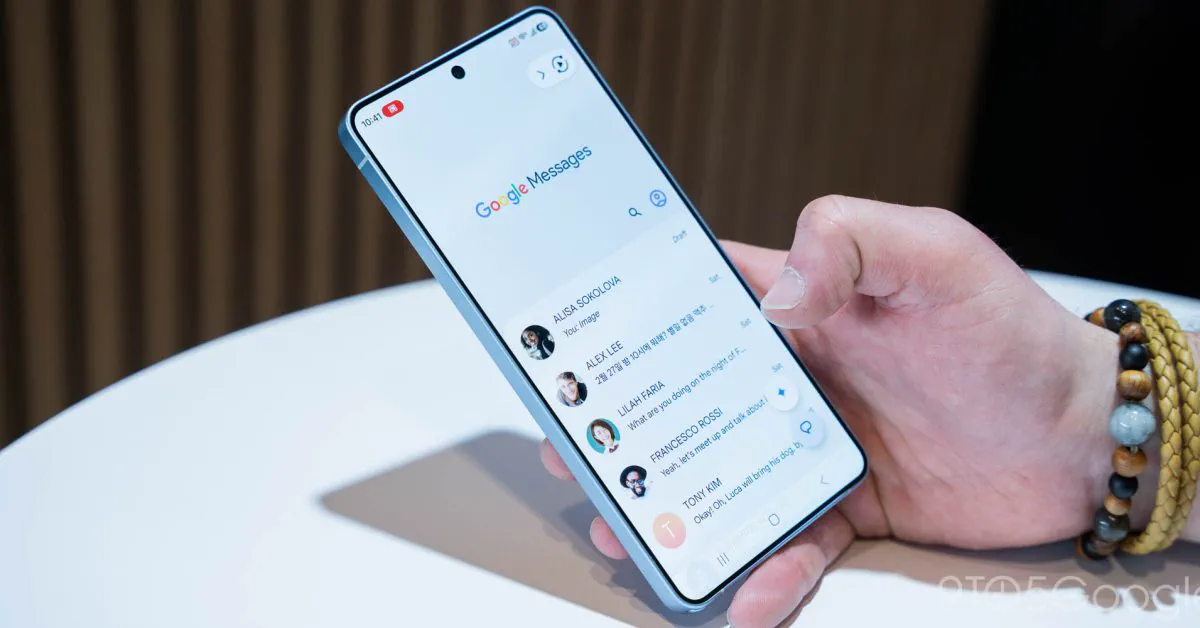 Photo: 9to5google.com (source)
While the visual polish is immediately apparent, the functional star of this release is granular, partial text selection. Historically, tapping "Copy" inside Google Messages copied the entire content of the bubble to the clipboard. If a friend sent a multi-paragraph message containing an address, a single tracking number, or a six-digit verification code, users were forced to copy the entire block of text, paste it into an external note or scratchpad, and manually trim away the excess.
With this update, Google has established a clean, two-step interaction to select precisely what you need:
- Step 1: Press and hold any message bubble to summon the primary floating menu.
- Step 2: Long-press a second time directly on the body text within that message bubble.
- Step 3: Android’s native text selection handles will appear, allowing you to drag the boundaries across the exact words, sentences, or alphanumeric strings you want.
- Step 4: A secondary context dialog automatically displays contextual options, including Copy, Translate, and Select All.
This two-tier mechanism avoids triggering accidental text selection handles when you simply intend to react or reply to a message, while granting immediate precision whenever you need specific data.
Old Top Toolbar vs. New Floating Overlay
The shift from a top bar to an in-line card alters everyday interaction across both RCS and standard SMS/MMS threads. The floating panel surfaces dedicated icons alongside text labels for rapid visual parsing.
| Attribute | Legacy Interface (Old) | Floating Context Menu (New) |
|---|---|---|
| Menu Location | Fixed horizontal bar at top of screen | Floating card positioned adjacent to message |
| One-Handed Ergonomics | Poor (requires reaching top edge) | High (anchored near thumb position) |
| Visible Actions | 3 primary icons + overflow three-dot menu | Full vertical list with clear icons and text |
| Text Selection | All-or-nothing entire bubble copy | Granular handle-based partial copying |
| Background Effect | Static conversation view | Prominent background blur (frosted glass) |
| Screen Adaptation | Static header across all orientations | Dynamic repositioning and landscape optimization |
Depending on whether the selected item is text, an image, or an outgoing message, the new menu dynamically populates contextual actions. These options include Reply, Forward, Copy, Star, Delete, Select more, Info, Edit (for recently sent messages), and media-specific tools like Save and Remix for images. The horizontal pill containing emoji reactions and the "Create" Photomoji button remains intact directly above the message.
Visual Polish: Haptics, Blurs, and Landscape Optimization
Beyond raw functionality, Google has overhauled the sensory design of conversation interaction. When activating the long-press menu, the underlying chat thread blurs out completely, creating a distinct depth layer that isolates the active bubble.
If the selected message rests near the very bottom of the display—such as the most recent incoming message—the application now applies a subtle bounce animation paired with crisp haptic feedback to gently elevate and center the message on screen. This dynamic repositioning ensures that the floating menu never gets cut off by the system navigation bar or the virtual keyboard.
Google has also introduced full parity for light and dark system themes, avoiding high-contrast jarring flashes when switching between environments. Furthermore, the interface has been re-architected for landscape orientation, ensuring foldables, tablets, and rotated handsets present a two-column or horizontally constrained layout rather than an awkward, stretched-out vertical card.
Rollout Timeline, Versions, and How to Get It
The feature’s journey began in January, when Google first initiated quiet A/B server-side tests with small user cohorts. By August, Google expanded beta testing under build 20260731_00_RC00, gathering telemetry on layout stability and text-handle sensitivity.
Broad public availability started surfacing through stable build 20260910_03_RC02 and related September releases. However, because the feature relies on a staged server-side activation flag alongside the app package, simply downloading the latest Play Store build may not immediately trigger the interface.
If your app has updated to the latest stable release but still displays the legacy top bar, you can attempt to nudge the server flag by navigating to Android Settings > Apps > Messages, tapping Force stop, and relaunching the application.
Part of a Bigger Wave of Chat Experience Upgrades
The context menu redesign arrives as part of a concentrated effort by Google to elevate Messages into a competitive messaging platform. Alongside this rollout, Google has deployed complementary conversational gestures:
- Swipe for Timestamps: Swiping left anywhere on a conversation thread now slides open exact message delivery timestamps alongside end-to-end encryption indicators.
- Direct Swipe Replies: Swiping right directly on a chat bubble initiates an in-line reply, matching the interaction conventions popularized by apps like WhatsApp and iMessage.
- Workspace Integration: Broader expansion of contextual Google Keep shortcuts allows users to draft, preview, and pin notes directly within collaborative threads.
With cross-platform RCS adoption expanding following Apple’s integration of the standard in recent iOS iterations, Google is polishing core UX mechanics to ensure Android users enjoy a native experience that rivals competing ecosystems.
What This Means for Everyday Android Users
For everyday Android owners, this update removes a persistent minor frustration that has existed in the operating system's default SMS/RCS client for years. The inability to easily copy snippets like two-factor authentication codes, addresses, or flight numbers forced many users to adopt clumsy workarounds, such as invoking Circle to Search or copying full messages into intermediate apps.
By putting partial selection directly inside the native conversation view and moving everyday management buttons within reach of your thumb, Google Messages feels significantly faster, cleaner, and better suited for today's large-screen devices.
FAQ
How do I copy only part of a text in Google Messages? Long-press the message bubble to reveal the floating action menu, then press and hold directly on the text itself. Drag the highlighted boundary handles to frame the words you want and tap "Copy" on the secondary popup.
Why don't I see the new long-press menu yet? The feature is controlled by a staged server-side rollout tied to recent app updates. Ensure Google Messages is updated to the latest version on Google Play, then go to Settings > Apps > Messages and select Force Stop to prompt the new interface to activate.
Did the emoji and Photomoji reaction bar change? No, the horizontal reaction pill containing standard emojis and the custom Photomoji creation tool remains positioned directly above the selected message.
Does partial copying work on both SMS and RCS messages? Yes, the new floating context menu and partial text selection mechanics operate identically across standard SMS/MMS messages and rich RCS chats.