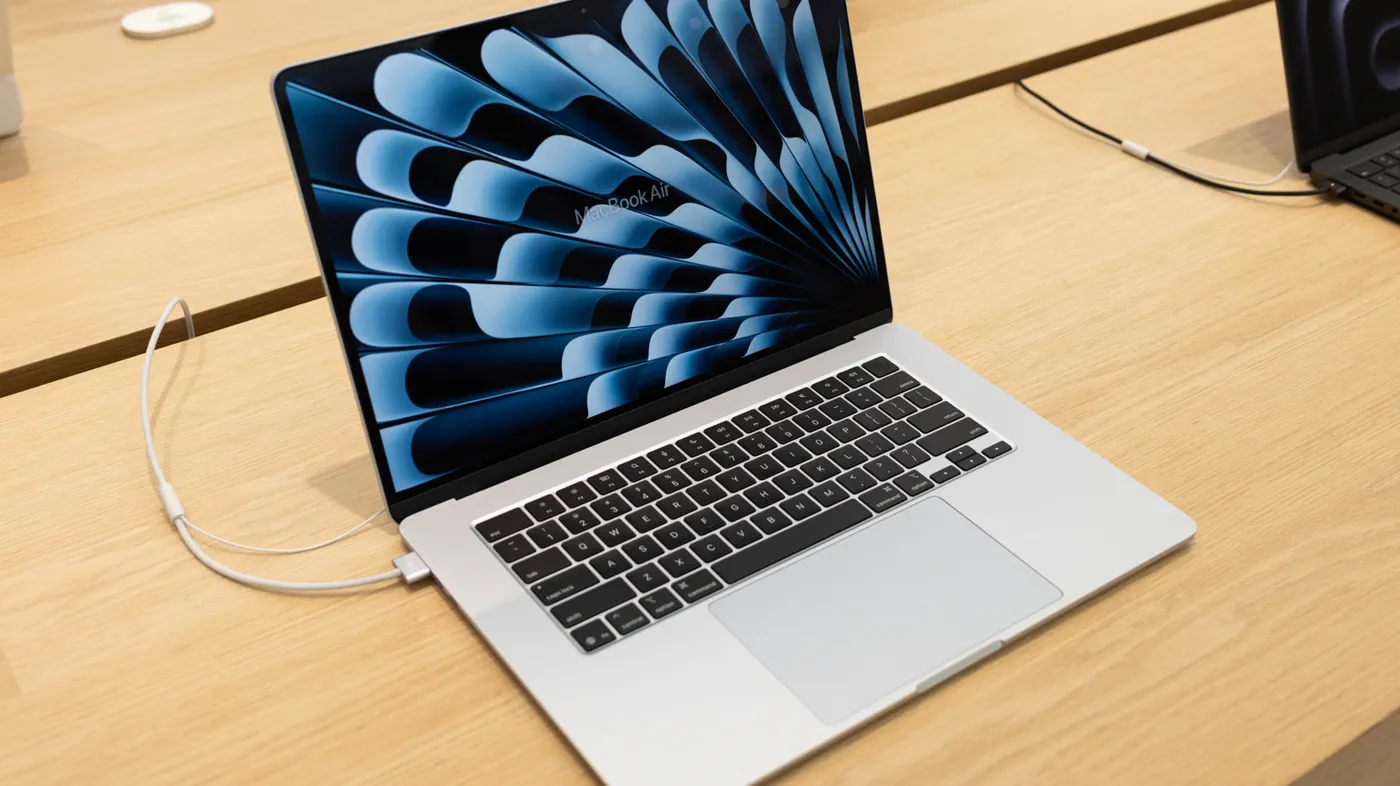
For millions of remote workers, students, and creative professionals, keeping a MacBook plugged into a charger all day while working has become the default desk setup. Yet a lingering piece of legacy tech folklore continues to create anxiety: the fear that using your laptop while it is actively connected to power will overcharge the cells, cook the battery, and ruin its overall lifespan.
The short answer is that using your MacBook while charging does not hurt its battery. Modern MacBooks—especially Apple Silicon models across the MacBook Air and MacBook Pro lineups—are engineered with advanced hardware controllers and intelligent software designed specifically to manage power draw safely. In fact, using your Mac on wall power can often preserve long-term battery health better than constantly unplugging it and letting it cycle down to zero.
The Myth vs. Reality: What Happens When You Plug In
The belief that keeping a laptop plugged in ruins the battery comes from decades past, when consumer portables relied on nickel-cadmium (NiCad) and nickel-metal hydride (NiMH) batteries. Those older chemical compositions suffered from a phenomenon called the "memory effect," where partial charging cycles reduced usable capacity over time, and rudimentary charging bricks lacked the internal electronics required to stop delivering current once a pack was full.
Every modern MacBook relies on lithium-ion chemistry paired with dedicated power management integrated circuits (PMICs). These microcontrollers constantly monitor the voltage, temperature, and current entering the laptop. When your MacBook reaches a full charge, the system does not continue pushing electricity into already saturated cells. Doing so would create thermal runaway, which modern safety standards and internal firmware strictly prevent. Instead, the laptop changes how it handles electrical current entirely.
Watch: Testing MacBook Battery Myths! Is It Safe To Leave Plugged In?

Video: AppleInsider on YouTube
Power Bypass: How MacBooks Run Directly Off the Wall
 Photo: Engadget - Technology News & Expert Reviews (source)
The cornerstone of Apple's charging architecture is power bypass. When you connect a compatible MagSafe or USB-C power adapter to a MacBook, the incoming electricity splits into two distinct paths: one feeds the battery charging circuit, and the other feeds the logic board, display, and peripherals.
Once the battery reaches its charge ceiling—either 100% or an optimized threshold set by macOS—the hardware controller switches off the flow of current into the battery pack. At that point, your MacBook effectively functions like a desktop computer, drawing 100% of its operational energy directly from the wall adapter.
Because the system is powered directly from the mains, the internal battery sits in an idle state. It does not continuously discharge and recharge in micro-bursts. You can verify this behavior directly in macOS by opening Activity Monitor, selecting the Energy tab, and checking the power source status, which explicitly confirms when the machine is operating on AC power.
Battery Cycles and Why AC Power Actually Helps
Lithium-ion batteries have a finite service life measured in charge cycles. One full charge cycle represents discharging an amount of energy equal to 100% of the battery’s rated capacity, whether that occurs in a single sitting or across multiple days (such as using 50% today, charging to full, and using 50% tomorrow).
Apple rates the batteries inside modern MacBook Air and MacBook Pro models to retain up to 80% of their original capacity after 1,000 complete charge cycles under typical conditions. When you rely exclusively on battery power throughout the workday, you steadily burn through those 1,000 cycles.
By keeping your MacBook plugged in at a desk, your active computing tasks draw power from the wall, preventing unnecessary cycle accumulation. A user who keeps their laptop docked for the majority of their 40-hour workweek might log fewer than 50 cycles over an entire year, compared to a mobile user who drains and recharges daily and accumulates 250 to 300 cycles in the same timeframe.
Charging While Working vs. Working on Battery
Understanding the trade-offs between different power routines helps clarify why wall power is generally the safer, more performant choice for stationary setups.
| Factor | Using MacBook While Plugged In | Running Exclusively on Battery | Draining to 0% Before Charging |
|---|---|---|---|
| Power Source | AC mains via bypass circuit | Internal lithium-ion cells | Internal lithium-ion cells |
| Cycle Accumulation | Minimal or zero while connected | Moderate (accumulates daily) | High (rapid cycle burn) |
| Sustained Performance | Maximum chip headroom maintained | High, but power modes may throttle | Throttling near low-battery states |
| Chemical Stress | Low to moderate (mitigated by macOS) | Low (optimal between 20%–80%) | Severe (deep discharge damages anodes) |
| Thermal Exposure | Moderate during simultaneous fast charging | Low under light loads | High if fast-recharging from empty |
The Role of macOS: Optimized Battery Charging and Limits
While running on AC power prevents cycle wear, keeping lithium-ion cells continuously held at a 100% state of charge at high chemical potential can accelerate cell aging over several years. Apple addresses this through built-in software tools in macOS.
- Optimized Battery Charging: Introduced in macOS Big Sur, this feature uses on-device machine learning to track your daily routine. If you routinely leave your MacBook connected to a dock or monitor during working hours, macOS will automatically pause charging once the battery reaches 80%. It holds the battery at that lower-stress level throughout the day, only completing the charge to 100% shortly before it predicts you will unplug and commute.
- Native Charge Limits: In recent macOS updates for Apple Silicon systems, Apple added manual charge limit controls under System Settings > Battery. Users can manually instruct the operating system to cap charging at 80%, entirely preventing the battery from resting at maximum voltage during long stretches of desktop use.
- System Status Reporting: macOS provides clear health diagnostics. Under Battery Health, the OS reports Maximum Capacity (percentage compared to original factory specs) and Condition, alerting users with a "Service Recommended" warning only when the pack drops below normal operating thresholds.
The Real Culprits: Heat and Deep Discharges
If leaving a MacBook plugged in does not ruin the battery, what does? Battery scientists and hardware engineers point to two primary factors: heat and deep discharges.
Heat is the single most destructive element for lithium-ion packs. When internal cell temperatures exceed 35°C (95°F), chemical breakdown within the electrolyte accelerates, causing permanent capacity loss. If you run intensive workloads—such as compiling code, exporting 8K video, or 3D rendering—while simultaneously fast-charging an empty battery, the combined heat from the processor and the battery charging circuitry creates thermal stress. Using your laptop on soft bedding, blankets, or pillows that choke the chassis vents compounds this issue.
The second major culprit is deep discharge cycling. Letting a MacBook battery completely drain to 0% places high mechanical and chemical strain on the internal electrodes. Regularly letting your laptop shut down from complete exhaustion causes far more measurable degradation over 12 months than leaving it plugged in at 100% ever could.
Practical Rules for Preserving MacBook Battery Longevity
You do not need to obsessively monitor your charging cable to get years of reliable performance from your MacBook. Following a few practical habits ensures maximum hardware longevity:
- Keep it plugged in when working at a desk: Take advantage of bypass charging to minimize charge cycle wear on the battery.
- Enable Optimized Battery Charging: Check System Settings > Battery > Battery Health and ensure Optimized Battery Charging is toggled on so macOS can manage voltage limits automatically.
- Maintain airflow during heavy workloads: Always place your MacBook on a hard, flat surface like a wooden desk, aluminum stand, or cooling tray when running demanding creative software or games.
- Avoid the zero percent danger zone: Try to connect your charger once the battery level drops to roughly 20% rather than letting the machine drain until it shuts off.
- Store at 50% for extended breaks: If you plan to store your MacBook inside a drawer or bag without using it for several weeks or months, charge or discharge it to approximately 50% before powering it down to prevent a deep-discharge failure state.
FAQ
Does keeping my MacBook plugged in all the time overcharge it? No, modern MacBooks contain integrated power management hardware that cuts off charging as soon as the battery reaches capacity. Once full, the laptop runs entirely on bypass power drawn directly from the charger.
Is it better to leave my MacBook on the charger or drain it regularly? Leaving it connected to power is generally better for the battery because it reduces the accumulation of charge cycles. Constantly draining the battery down to zero and recharging it stresses the lithium-ion cells much faster.
Should I use third-party apps like AlDente to limit charging? While apps like AlDente offer granular manual control over charge thresholds, macOS now includes built-in Optimized Battery Charging and native charge limits that handle capacity management automatically without extra software.
Why does my MacBook battery health percentage decrease even if I rarely unplug it? All lithium-ion batteries degrade over time due to natural chemical aging, regardless of cycle count. Temperature fluctuations, ambient environmental conditions, and resting voltage will cause gradual capacity decline over several years even with minimal portable use.
Can I use high-wattage fast chargers without damaging the battery? Yes, Apple silicon MacBooks safely regulate the wattage they draw from higher-output adapters. While fast charging generates slightly more transient warmth, built-in thermal safeguards will throttle charge speeds if internal temperatures rise too high.