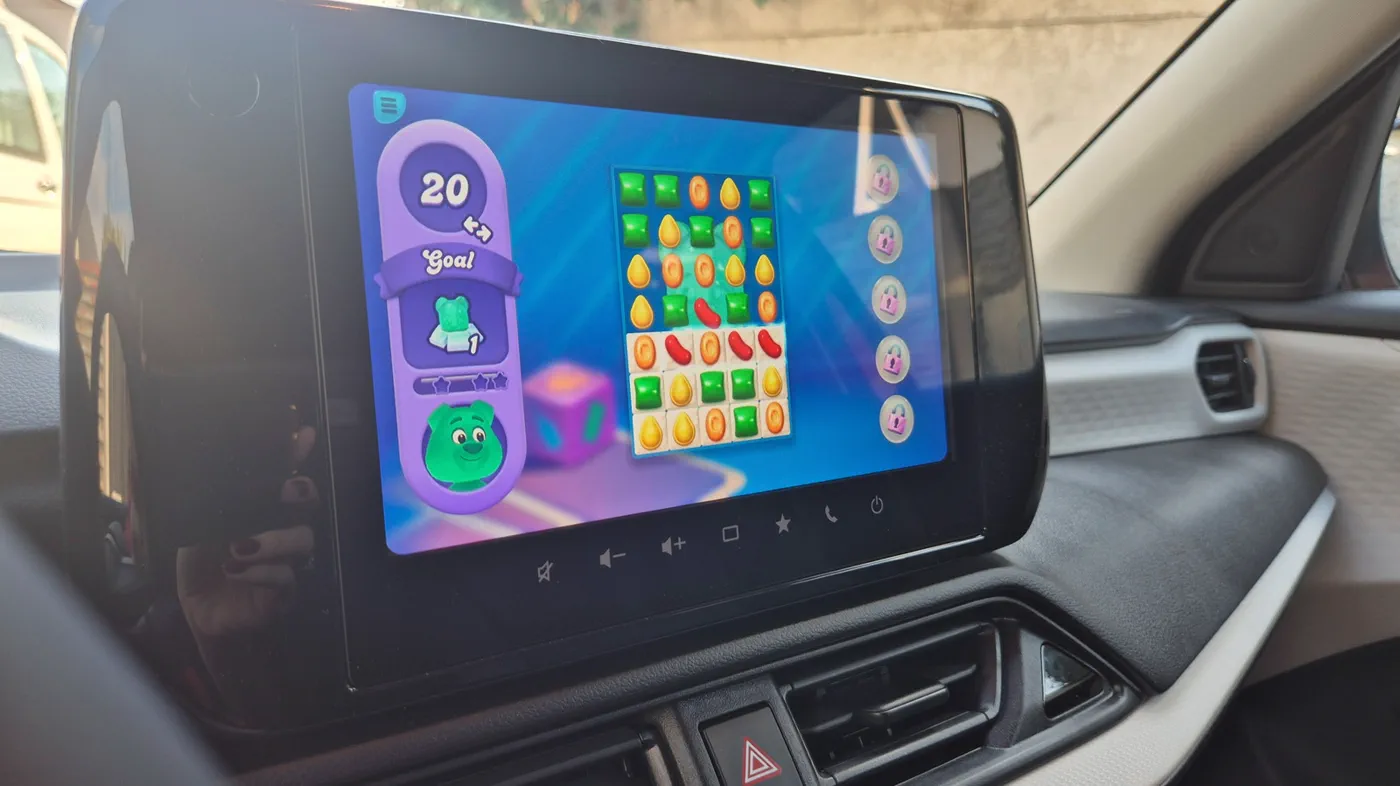
Waiting in a parked vehicle—whether idling through kid’s soccer practice, sitting in a school pickup queue, or waiting out an EV fast-charging session—has historically meant hunching over a smartphone screen. Google has overhauled the Android Auto experience by officially graduating in-car video game support from beta into general availability, letting drivers project full-fledged mobile games directly onto their car’s central dashboard display.
Unlike earlier experimental mini-games, this capability brings mainstream Google Play titles straight to your infotainment screen with full touchscreen and Bluetooth gamepad support. Here is everything you need to know about setting up mobile games on Android Auto, how the system works, and what safety safeguards keep gaming strictly confined to parked downtime.
Leveling Up Car Downtime: How In-Car Gaming Works
Android Auto operates as a projection platform. That means the heavy lifting—rendering 3D graphics, managing device storage, and computing physics engines—is executed directly by your connected smartphone, while your car’s dashboard acts as an external interactive display.
When Google first teased expanded parked entertainment at Google I/O, gaming was limited to a curated developer preview. Following broader software rollouts, Google removed the beta tags, opening the production pipeline on Google Play so any developer can optimize and publish car-compatible titles. Drivers no longer need to sideload experimental software or enroll in preview builds to play genuine mobile titles on their dashboard.
To run games on your car screen, your setup must meet three core requirements:
- A compatible smartphone: Devices must be running Android 15 or newer with the latest Android Auto services installed.
- A supported infotainment system: A wired USB connection or wireless Android Auto receiver running on a factory or aftermarket head unit.
- A parked vehicle: The vehicle transmission must be locked in Park (with the parking brake engaged on select models).
Step-by-Step Setup: Getting Games From Phone to Dash
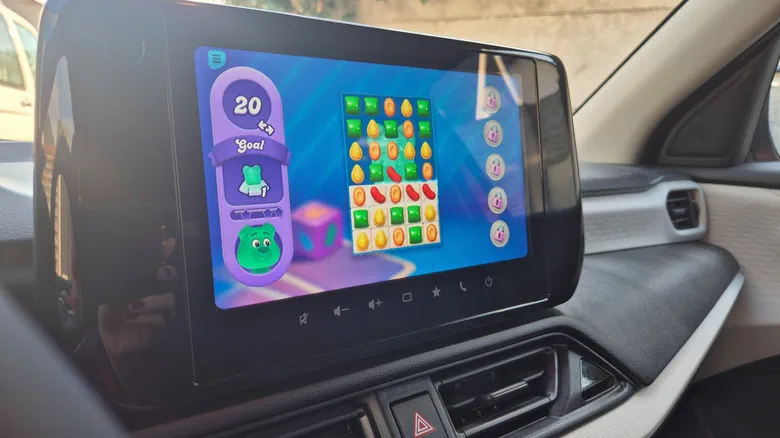 Photo: Engadget - Technology News & Expert Reviews (source)
Setting up games on your dashboard does not involve downloading games through your car's stereo interface. Instead, the installation begins and finishes on your phone. Follow these steps to get playing:
- Find Supported Games on Google Play: Open the Google Play Store on your Android phone. Search for verified compatible titles or browse the car-compatible section. Compatible titles will indicate dashboard optimization or car support in their app listing.
- Complete Initial Setup on Mobile: Download and open the game on your handset before connecting to your car. Modern titles often download extra runtime data, require terms-of-service agreements, or ask for Google Play Games cloud sign-ins. Clearing these prompts on your handset prevents loading freezes on your vehicle display.
- Connect Your Handset to Your Car: Link your smartphone to your vehicle using a certified USB-C cable or wireless Android Auto pairing over Wi-Fi and Bluetooth. Turn on the vehicle's ignition and confirm Android Auto launches on the screen.
- Engage Park: Ensure the vehicle transmission gear selector is resting firmly in Park.
- Launch the Title: Open the Android Auto app drawer on your dashboard. You will see individual icons for your installed games alongside standard utilities like Google Maps and Spotify. Tap the game icon to open the title in an immersive, full-screen display.
Supported Titles and Controller Integration
Around 30 titles are actively supported on the platform, spanning casual puzzlers, racing games, and animated classics. The current stable catalog features prominent downloads, including:
- Beach Buggy Racing 2
- Beach Buggy Racing
- Angry Birds 2
- Angry Birds Friends
- Candy Crush Soda Saga
- Farm Heroes Saga
- My Talking Tom Friends
Touch responsiveness varies by vehicle display technology. While capacitive vehicle touchscreens feel identical to a standard tablet, older resistive screens can feel slightly sluggish for high-speed tapping.
To solve this, Google’s automotive technical guidelines allow external gamepads. For action-heavy games such as Beach Buggy Racing 2, you can pair a standard Bluetooth controller (such as an Xbox Wireless Controller, PlayStation DualSense, or mobile gamepad) directly to your Android handset. Once paired, the controller inputs pass through the phone to control the in-dash action without requiring you to reach forward to touch the glass.
How Android Auto Compares to CarPlay and Tesla Arcade
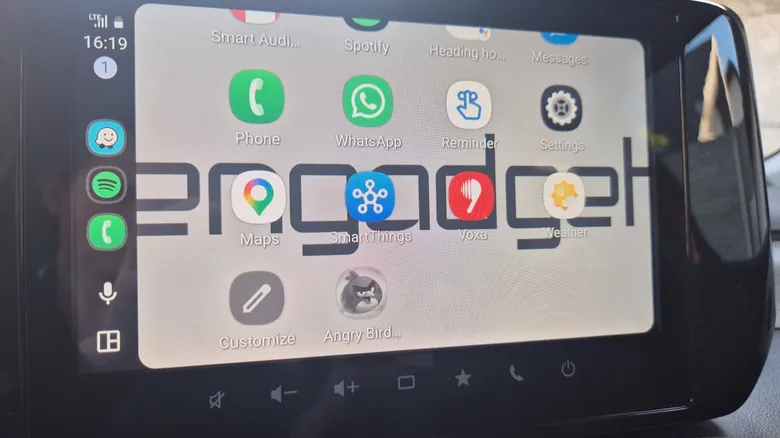 Photo: Engadget - Technology News & Expert Reviews (source)
In-car gaming has become a battleground for connected dashboard platforms. Automakers and software giants approach parked entertainment through contrasting philosophies.
| Feature | Android Auto | Apple CarPlay | Tesla Arcade |
|---|---|---|---|
| Native Gaming Support | Yes (Out of beta) | No (Audio/trivia drills only) | Yes (Integrated native client) |
| Hardware Dependency | User's smartphone (Android 15+) | iPhone | Car's onboard computer |
| Display Method | Projected to vehicle screen | Projected to vehicle screen | Built-in native dashboard |
| Controller Support | Bluetooth/USB via smartphone | N/A | Bluetooth, USB & steering wheel |
| Vehicle Availability | Hundreds of models across brands | Hundreds of models across brands | Tesla vehicles only |
| Motion Lockout | Instant mute & freeze when out of Park | N/A (Games disallowed) | Disabled while driving |
While Tesla was the pioneer of vehicle infotainment gaming—even leveraging physical steering wheels as controllers—its ecosystem remains proprietary. Apple CarPlay strictly excludes dashboard gaming and video playback due to safety conservatism. Android Auto bridges the gap, allowing everyday motorists driving Hondas, Fords, Hyundais, and Chevrolets to access expansive gaming without purchasing an ultra-luxury EV.
Behind the Transition: From GameSnacks to Full Native Gaming
Gaming inside Android Auto is not entirely unprecedented, but the technology underpinning it has fundamentally shifted. In 2021, Google rolled out "GameSnacks," a product of Area 120 (Google’s in-house project incubator). GameSnacks relied entirely on lightweight, web-based HTML5 code. While titles like Stack Bounce or Solitaire loaded quickly and required minimal data, they felt like throwback browser games and lacked modern mobile visual fidelity, cloud progress tracking, or physical gamepad compatibility.
Meanwhile, cars built with Google Built-In (Android Automotive OS) gained access to dedicated app installations. This created a software disparity: owners of cars with native Android Automotive could play richer titles, while Android Auto projection users were restricted to HTML5 novelties.
By moving car game development into Google Play’s standardized publishing tracks, Google unified the developer workflow. Studios can now adapt standard Android APKs to scale across multiple automotive aspect ratios, widescreen consoles, and aspect orientations, giving users deep, progression-based mobile experiences.
Safety Guardrails: Why You Can Only Play in Park
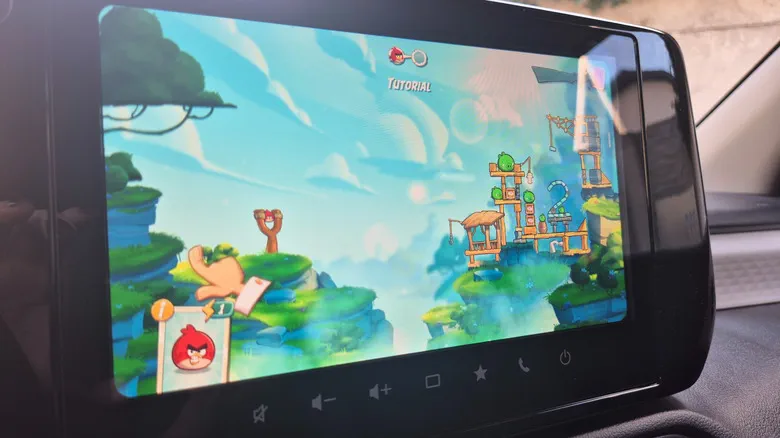 Photo: Engadget - Technology News & Expert Reviews (source)
Safety remains the paramount hurdle for in-car software, and Google’s operating guidelines enforce uncompromising limitations. Video games cannot be initiated or run in any vehicle in motion.
- Gearshift Interlocks: Android Auto queries your vehicle’s Controller Area Network (CAN bus) data. If your gear selector is in Drive, Reverse, or Neutral, all game icons in the launcher are grayed out. Tapping them triggers a prompt warning that games are unavailable while driving.
- Instant Execution Kill: If a passenger is playing a game while parked and the driver shifts into Drive to pull away, the application terminates immediately. Android Auto instantly forces the display back to your active navigation or dashboard home screen.
- Audio Shutdown: Google mandates that in-game background audio must cut off instantaneously the split-second the car rolls forward, ensuring no sound cues distract the operator.
- Automated State Restores: To prevent drivers from losing their spot or feeling frustrated when pulling away in traffic, Google requires developer builds to include state preservation. The moment you park again, the game opens precisely where it froze.
What It Means for Drivers and What's Coming Next
Opening up in-car games turns idle vehicle cabins into comfortable entertainment hubs. For parents stuck in parking lots waiting out late soccer scrimmages, or commuters waiting out 45-minute battery top-offs at roadside charging plazas, the dashboard becomes a functional console.
Looking ahead, games represent only the first phase of Google’s parked cockpit strategy. Google is also preparing parked video streaming services (including native YouTube integration) and integrated web browsing for Android Auto. For now, if you are stuck killing time behind the wheel with the engine idling, grabbing a mobile controller and docking your phone transforms your dashboard into an arcade on wheels.
FAQ
Can I play Android Auto games while my vehicle is moving? No. Games are strictly locked to parked vehicles; if the car shifts out of Park, the game instantly shuts down and mutes.
Why can't I see games in my Android Auto app launcher? Your phone must be updated to Android 15 or newer, and you must download a supported game from the Play Store onto your device first. Additionally, your car must be stationary in Park for the game shortcuts to show up as active.
Do Android Auto games drain my car's battery? Games run directly on your smartphone's processor, drawing power from your mobile device rather than the car's engine systems. However, keeping the dashboard screen active with accessories on draws auxiliary 12V battery power, so avoid extended parked sessions without starting hybrid/EV systems.
Can I use a gaming controller with Android Auto? Yes, several compatible titles like Beach Buggy Racing 2 support physical Bluetooth controllers paired directly to your phone.
Are GameSnacks mini-games being discontinued? No, HTML5 GameSnacks remain accessible as quick, lightweight casual games, but full Play Store titles now operate as independent, standalone apps on the launcher.