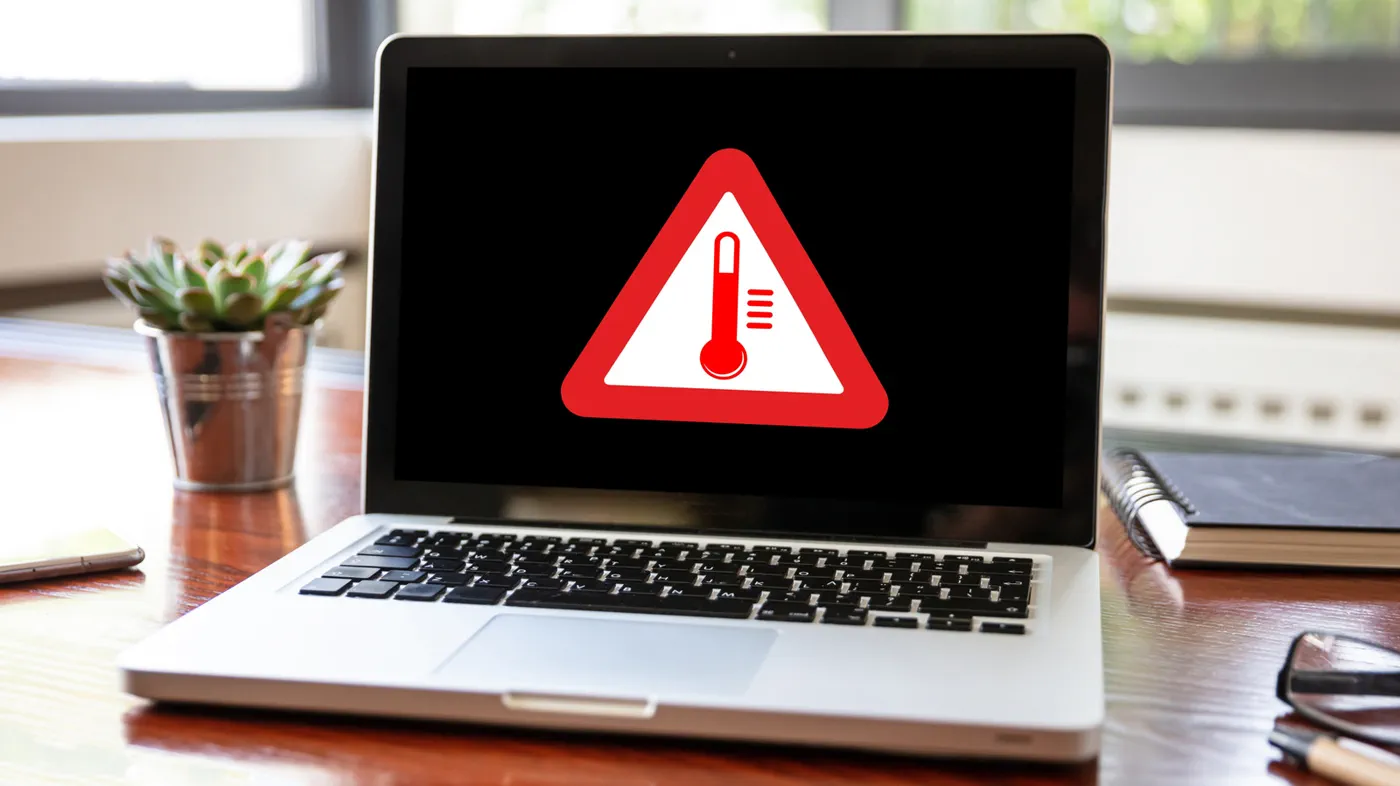
You sit down at your desk with your laptop open, close your browser tabs, and leave the computer alone for a few minutes, only to hear its internal fans suddenly roar like a miniature jet engine. While cooling fans are designed to exhaust heat from high-performance silicon, hearing them spin up to top speed when you are not actively doing anything is a common frustration that usually points to invisible background operating system tasks, choked ventilation, or dust-clogged radiators.
Modern laptops pack desktop-caliber processing power into chassis often less than an inch thick. To keep components from degrading or automatically shutting down to prevent damage, thermal management systems constantly read internal temperature sensors. When these sensors detect rising heat—even from invisible processes running beneath the surface—the fan curve commands the blowers to spin up aggressively.
The Anatomy of Modern Laptop Cooling
To understand why an idle laptop gets loud, it helps to understand how modern thermal systems operate. Inside your machine, the central processing unit (CPU) and graphics processing unit (GPU) sit beneath sealed copper or aluminum heat spreaders. Liquid-filled copper heat pipes or vapor chambers absorb thermal energy from these chips and transfer it outward to finned heatsinks mounted along the exhaust vents.
Small centrifugal blower fans pull ambient air from intake grilles—typically located on the bottom or near the hinge of the laptop—and blast it across those radiator fins to push hot air out. Firmware programmed into the motherboard's embedded controller monitors component temperatures in real time. If silicon temperatures breach set thresholds—often beginning around 50°C to 60°C for light cooling and crossing 80°C to 90°C for maximum thermal dissipation—the fans quickly ramp up their revolutions per minute (RPM). If anything interrupts that airflow or artificially elevates chip temperatures, the fans have no choice but to work overtime.
Watch: Windows 11 - How to Fix Loud Fan Noise for any Laptop Acer, Lenovo, Dell, HP, Asus, Samsung
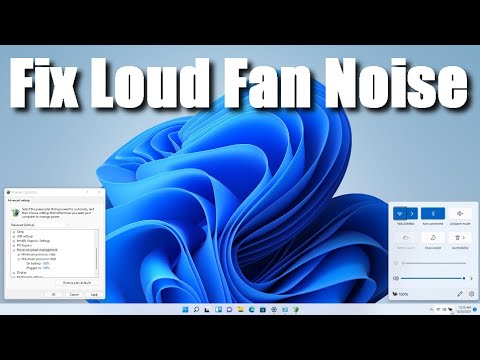
Video: Poolarity - Life Hacks on YouTube
The Software Saboteurs: What Your OS Does While You Idle
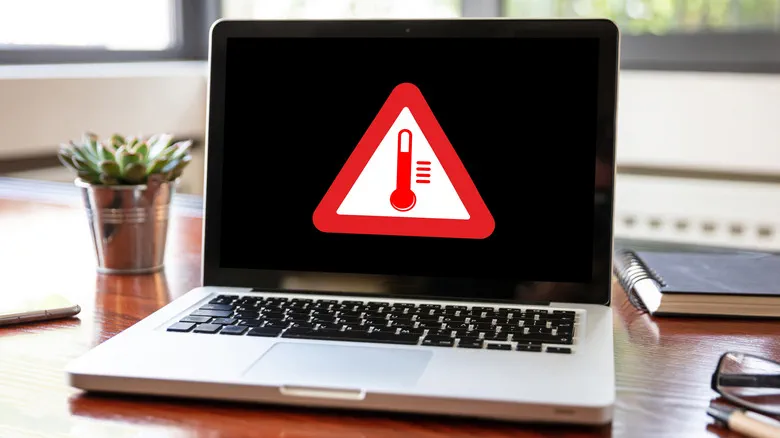 Photo: Engadget - Technology News & Expert Reviews (source)
Closing application windows does not mean your computer stops working. Both Windows and macOS are programmed to schedule heavy maintenance tasks specifically for moments when the user is inactive. When the operating system senses that mouse and keyboard input has stopped, it initiates background routines designed to keep your machine secure and organized.
Several automated software processes commonly trigger sudden fan spin-ups during idle moments:
- System Updates: Windows Update and macOS Software Update frequently download, decompress, and stage patches in the background, consuming substantial CPU overhead.
- Search Indexing: Services like Windows Search Indexer and macOS Spotlight (
mds_stores) catalog newly saved or modified files so desktop search remains fast. An initial indexing pass or an update to a large directory can keep processor cores pinned for hours. - Antivirus Definitions and Scans: Built-in protection suites like Windows Defender (
Antimalware Service ExecutableorMsMpEng.exe) run scheduled disk scans and definition updates when the device is idle. - Cloud Storage Syncing: Applications like Microsoft OneDrive, Google Drive, iCloud, and Dropbox constantly hash and verify files, occasionally entering sync loops that chew through system memory and processing cycles.
- Rogue Web Browser Helpers: Modern Chromium-based browsers (including Google Chrome, Microsoft Edge, and Brave) spawn isolated background processes that can leak memory or lock into infinite calculation loops even after closing their visible windows.
Power Profiles and Fan Curves: The Plugged-In Factor
Many users notice that their laptop runs completely silent on battery power, only to become noisy the moment it is plugged into a wall charger. This is not a coincidence; it is an intentional power configuration.
Operating systems and manufacturer control centers—such as Dell Power Manager, Lenovo Vantage, and ASUS Armoury Crate—use dynamic performance profiles. When running on battery, your machine prioritizes energy efficiency by lowering CPU voltage and restricting peak clock speeds. When connected to AC power, the system frequently switches to unconstrained power delivery or a "Best Performance" profile.
Under these aggressive profiles, modern processors utilize boost technologies (such as Intel Turbo Boost and AMD Precision Boost) that aggressively surge core clock speeds and voltages at the slightest hint of background activity. A transient, five-second background task can send chip temperatures spiking by 20°C to 30°C almost instantly, prompting the fan controller to react with an audible burst of speed before temperatures normalize.
Physical Obstructions: Airflow, Ergonomics, and Dust
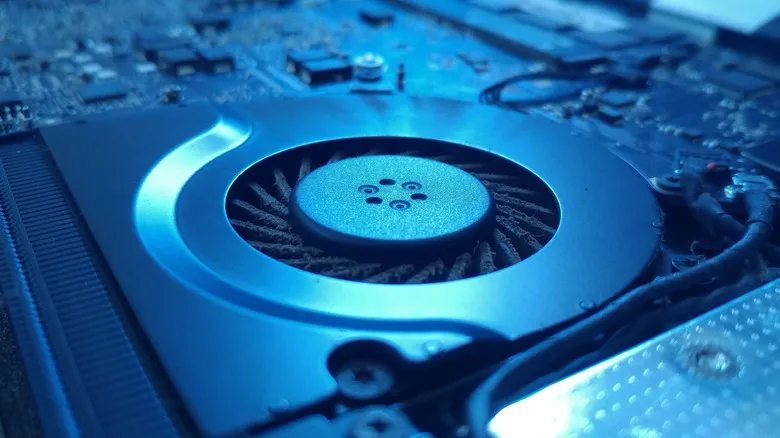 Photo: Engadget - Technology News & Expert Reviews (source)
Sometimes the problem is entirely environmental. Placing a laptop on a bed, couch, blanket, or carpet is one of the fastest ways to force fans to run at maximum speed. Soft fabrics conform to the bottom shell of the laptop, blocking intake vents and trapping radiant heat against the plastic or aluminum chassis.
Even when used exclusively on hard desks, laptops gradually inhale environmental contaminants. Over months and years, microscopic fibers, pet hair, and dust accumulate on the intake grilles and lodge inside the copper heatsink fins. This buildup forms an insulating thermal barrier. When exhaust fins are clogged, hot air cannot escape, forcing fans to spin at 100% capacity just to achieve the cooling that a clean heatsink could deliver at whisper-quiet speeds.
Diagnosing the Culprit: A Troubleshooting Matrix
Identifying whether your fan noise stems from rogue software, power configurations, or clogged hardware takes only a few minutes when you know what symptoms to check.
| Observed Symptom | Primary Root Cause | Diagnostic Utility | Recommended Action |
|---|---|---|---|
| Fans roar at idle; CPU usage stays above 20% | Stuck background service or update loop | Windows Task Manager / macOS Activity Monitor | End runaway process; complete pending OS updates |
| Fans roar at idle; CPU usage stays below 10% | Dust-clogged exhaust fins or dried thermal paste | HWMonitor / Core Temp | Clear vents with compressed air; inspect heatsink |
| Noise only occurs when connected to AC power | High-performance AC power profile | Windows Power & Battery settings | Switch power mode from "Best Performance" to "Balanced" |
| Continuous loud whirring while resting on soft surfaces | Blocked intake grilles | Physical inspection | Relocate laptop to a flat desk, lap tray, or riser |
| High-pitched clicking, rattling, or metallic scraping | Worn fan bearing or broken impeller blade | Physical listening check | Replace internal cooling fan assembly |
Step-by-Step Fixes for Windows and Mac
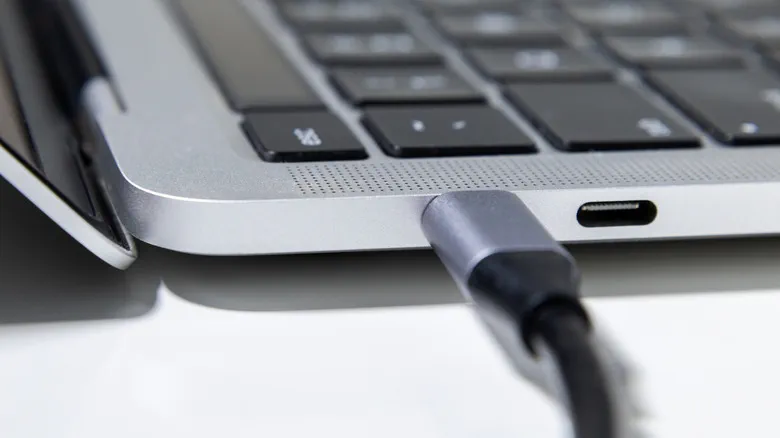 Photo: Engadget - Technology News & Expert Reviews (source)
To restore quiet operation, follow a methodical troubleshooting sequence starting with software before moving to physical cleaning.
1. Identify and Terminate Runaway Processes
On Windows, press Ctrl + Shift + Esc to open Task Manager, navigate to the Processes tab, and click the CPU column header to sort processes from highest to lowest usage. If an unfamiliar background process is consuming significant resources while your computer is idling, right-click it and select End task.
On macOS, press Cmd + Space, type Activity Monitor, and open the utility. Under the CPU tab, click % CPU to bring resource hogs to the top. Select any frozen or runaway process and click the stop icon (X) in the toolbar to force quit.
2. Prune Startup Applications
Unnecessary programs configured to launch at boot waste cycles in the background. In Windows Task Manager, select the Startup apps tab, right-click unneeded utilities (such as game launchers, updater tools, and chat software), and choose Disable. On a Mac, navigate to System Settings > General > Login Items and remove non-essential programs from the "Open at Login" list.
3. Adjust Power Modes
On Windows 11, open Settings > System > Power & battery. Under the "Power mode" dropdown, select Balanced or Best power efficiency instead of "Best performance." This prevents the processor from aggressively overvolting for minor background tasks.
4. Safely Clear Dust from Vents
Power down the laptop completely, disconnect the charger, and unplug all peripherals. Locate the intake and exhaust vents on the bottom and sides of the chassis. Using a can of compressed air held strictly upright, deliver short, controlled bursts into the grilles to dislodge accumulated dust bunnies. Avoid inserting long metal tools or nozzle tips deeply into the vents, which can bend delicate fan blades.
When Noise Means Trouble: Aging Paste and Failing Bearings
If you inspect your system, confirm that CPU utilization is below 5%, clear all dust, and still hear your fans screaming at idle, you may be facing hardware wear.
Thermal paste—the viscous compound applied between the processor die and the copper heat sink—gradually dries out and hardens after three to five years of thermal cycling. When thermal paste degrades, heat cannot transfer efficiently from the chip to the cooling apparatus. The processor overheats almost immediately under minor loads, triggering aggressive fan speeds despite low overall activity.
Additionally, laptop fan bearings do not last forever. If your fan produces a distinct rattling, buzzing, or grinding noise rather than the smooth rush of moving air, the sleeve or fluid dynamic bearing has likely suffered mechanical failure. Worn bearings cause blades to wobble, creating friction and reduced cooling efficiency that requires physical replacement of the fan module.
What It Means for Consumers and Laptop Buyers
For consumers shopping for their next portable computer, thermal architecture is just as important as raw benchmark scores. Thin-and-light Windows machines equipped with high-wattage processors frequently struggle with fan noise due to their limited internal volume.
Buyers who demand total silence often look to fanless architectures, such as Apple's base M-series MacBook Air models, which rely entirely on passive aluminum heatsinks and draw so little power that fans are unnecessary. However, for those who require dedicated graphics, gaming hardware, or workstation processors, fans remain essential.
To keep performance laptops quiet throughout their lifespan, users should clean their vents every six to twelve months, use simple mesh laptop risers to maximize intake clearance, and avoid running intensive cloud sync tools unattended during sleep hours.
FAQ
Is it dangerous if my laptop fan runs loudly when I am not using it?
An occasional loud burst is not inherently dangerous; it simply means your cooling system is doing its job by responding to a background temperature spike. However, if the fan remains at maximum speed indefinitely while idling, you should investigate, as chronic heat can degrade your battery and cause performance throttling.
Can cleaning my laptop with compressed air damage the fan?
Yes, if done incorrectly. Blasting high-pressure air directly into a fan can over-spin the impeller blades beyond their rated RPM, potentially damaging the motor bearings or generating back-voltage that harms the motherboard. Always use short, gentle bursts with the can held upright.
Why does my laptop fan spin up immediately when I plug in the charger?
Plugging in your laptop switches the operating system to an AC power profile that allows the processor to boost to higher clock speeds and voltages. The battery charging process itself also generates heat inside the chassis, prompting the cooling system to preemptively increase airflow.
How often should I clean the dust out of my laptop?
Most manufacturers recommend a light cleaning of the external vents with compressed air every six to twelve months. If you frequently use your machine on dusty surfaces or in households with shedding pets, cleaning every three to six months is advisable.